
SAP Client Configuration
This document serves as a guide for creating Purchase Orders in SAP, based on the training session recordings. It covers the essential steps, configurations, and considerations discussed during the training.
1. Initial Navigation
- Double-click on the production to begin creating a Purchase Order.
- Open the section labeled purchase orders and good receipts.
- Double-click on create purchase order.
2. End User Selection
- In the purchase order menu, locate stock transport order (with a small card icon).
- Click the drop-down next to it and select end user PO. #3.
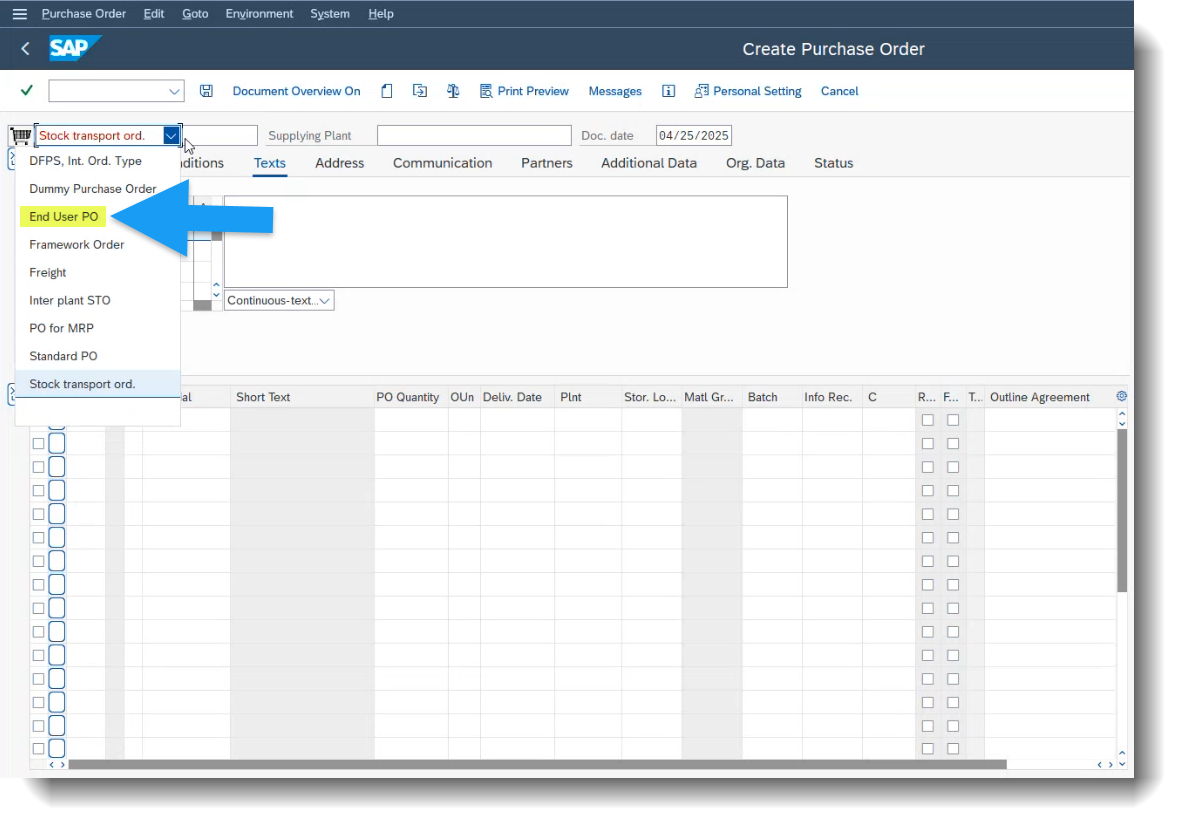
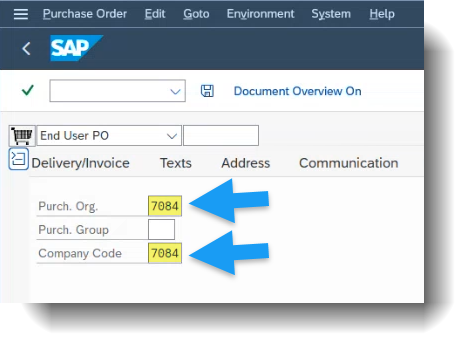
3. Org. Data Tab Header menu
Access the "Org. Data" tab under the header menu and configure the following fields:
4. Basic Settings Tab
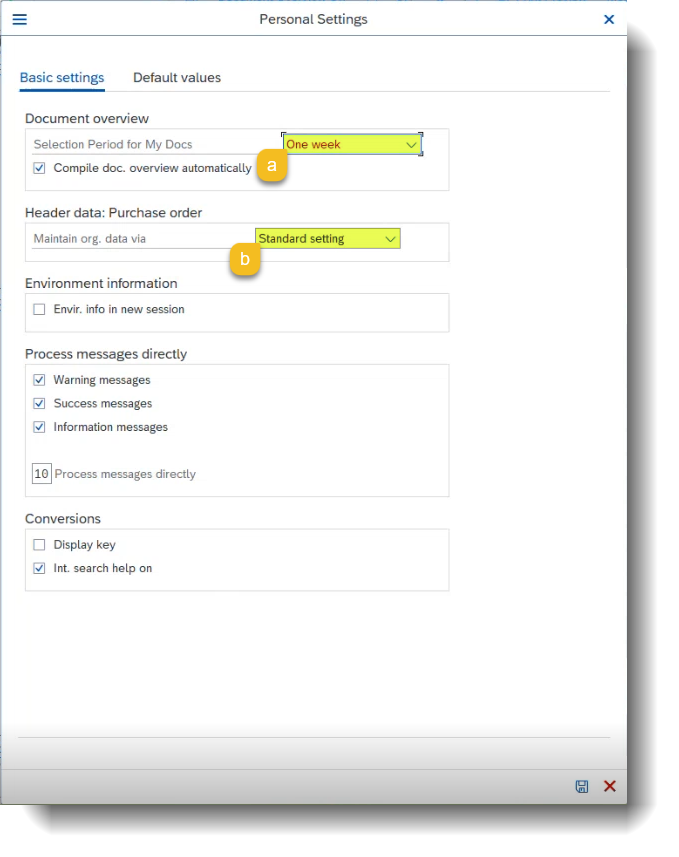
- Go to Personal settings at the top.
- On the Basic Settings tab, set the first option to one week and check standard settings.
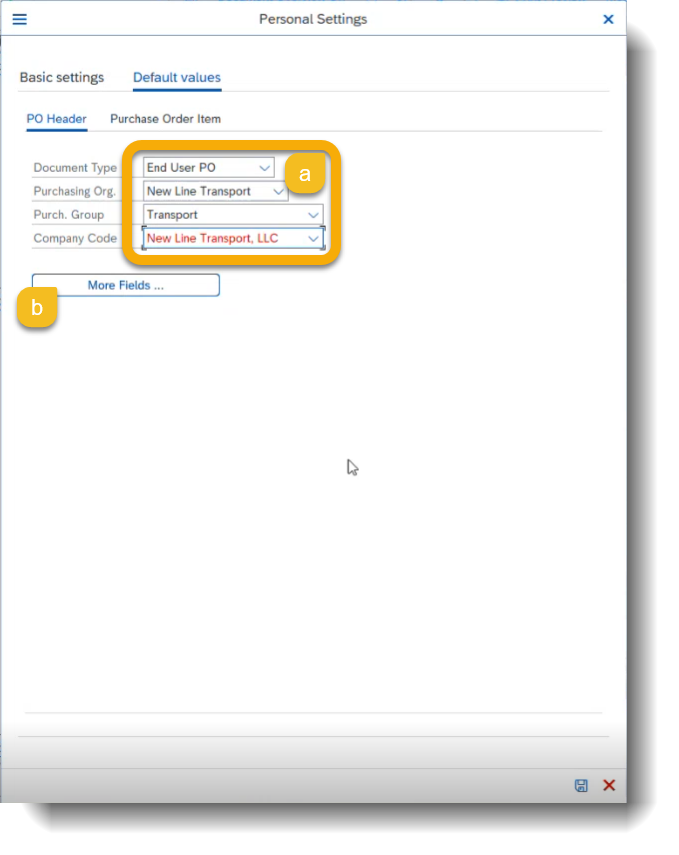
5. Default Values Tab
- PO Type: End user PO
- Purchase Organization: New Line Transport
- Purchase Group: Transport
- Company Code: New Line Transport or enter 7084
Click the field next to Short text to save the purchase organization and company code (no typing needed).
6. More Fields Configuration
- Go to the More Fields section.
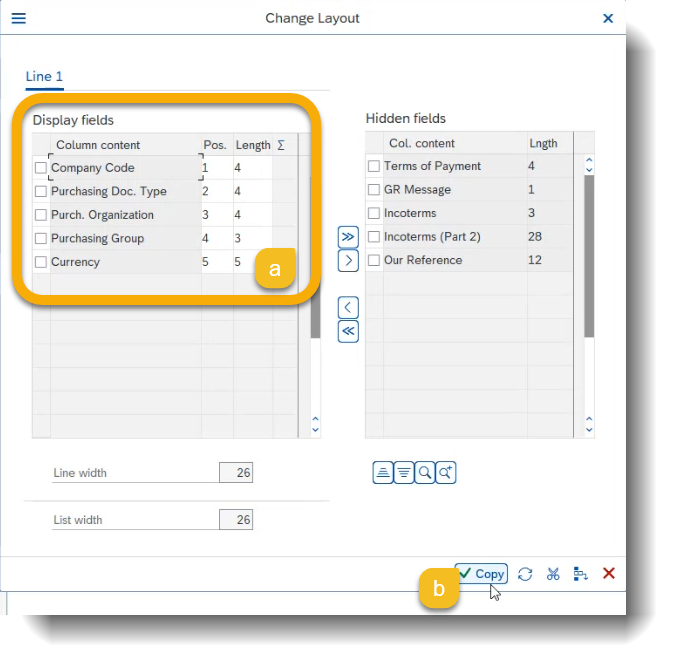
- Identify Hidden fields and locate Currency.
- Click the checkmark next to Currency to make it visible.
- Use the arrow button to move Currency to the visible fields list.
After adding fields, verify you have the required numbers: 1-4, 2-4, 3-4, 4-3, and 5-5.
Click the green copy/checkmark icon.
Click the save icon (a little save icon on the bottom next to the X) to save your personal settings.
7. Final Step
For the last configuration step:
- Type K in column A (plant number – terminal or shop)
- Type D in column C
- Type USD in the currency column
- Then press Enter

Note: If there is any issue with this configuration, please open a case in ServiceNow for assistance.